Video Editor & Maker VideoShow
- 4.5
- Rating
- 100.00M
- Installs
- Free
- Price

 Analysis by App-foxy
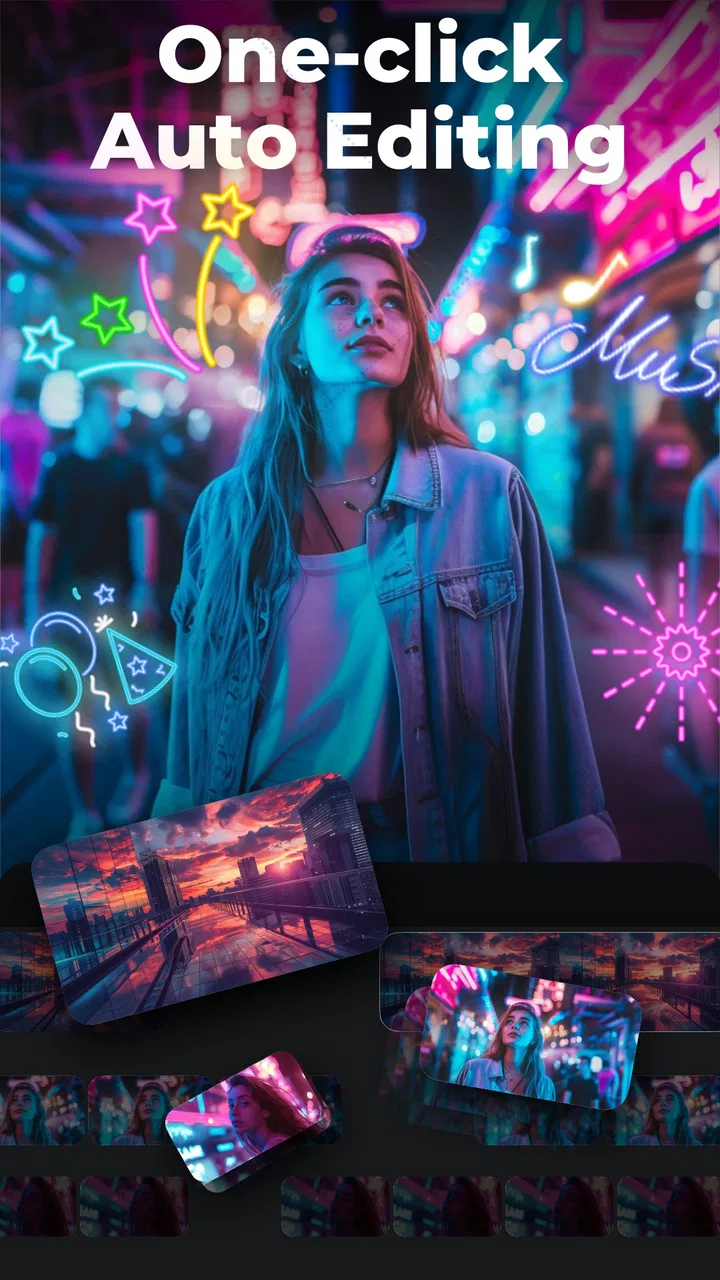
AI Video Editor - VideoShow AI is the kind of app I would suggest to someone who wants to turn everyday clips and photos into watchable videos without learning a desktop editor first. It sits in the video players and editors category, but its appeal is really the hands-on editing workflow: you can start with material already on your phone, add visual treatment and music, and work toward a finished social clip or personal montage in one place.
My first impression is that it aims for speed rather than technical depth. That is useful when the goal is a birthday recap, a short travel video, a product clip, or a quick post for friends. It is less convincing as a replacement for a full professional timeline editor. The app is free to install, carries a Teen content rating, and is made by VIDEOSHOW Video Editor & Maker & AI Chat Generator. Its store summary highlights AI video generation, photo-to-video creation, effects, music, and automatic captions, so a new user can reasonably expect guided tools alongside conventional editing.
What to expect before making your first video
The app has been available since August 31, 2013, and that long presence shows in its broad approach. Rather than focusing on one narrow task, it brings several common video jobs together. I found that useful because I did not have to switch between a slideshow maker, a caption tool, and a basic editor just to produce one short result. The trade-off is that a wide feature set can make the opening screen feel busier than a single-purpose app.
You May Also Like

 Blood Strike: 2.5 Anniversary
Blood Strike’s Loadouts Turn Every Drop Into a Tactical Gamble
A close look at Blood Strike’s custom loadouts: how fast access to signature weapons reshapes its battle royale rhythm, rewards preparation, and narrows the gap between fights.

 Pandora - Music & Podcasts
Pandora’s Music Is Easy to Start, but Harder to Recover
Pandora’s strength is its low-effort path from a seed to a station. Its weak spot is how much confidence it asks you to place in connection, setup, and quiet recovery.

 8 Ball Pool
 Is Built on Rivalries, Rematches, and Routine
A close look at the rivalries, rematches, shared routines, and unanswered safety questions that turn a quick pool match into a persistent mobile community.

 Samsung Music
’s Quiet Strength Is Playing What You Already Own
Its reach comes less from spectacle than from dependable access to a personal library. That simplicity is both the app’s strongest retention engine and its ceiling.

 AccuWeather: Weather Radar
AccuWeather Review: A Quick, Clear Forecast for Everyday Decisions
For everyday plans, the best forecast is the one you can understand quickly. AccuWeather makes rain timing, radar, and local conditions easy to act on, with a few trade-offs.

 Hill Climb Racing
Why Hill Climb Racing Still Turns Crashes Into One More Run
A tiny car, a bumpy hill and one more upgrade: Hill Climb Racing keeps resurfacing because its simple chaos makes every near-miss feel personal.
More From Our News Desk
View All News


Its current version is 11.0.3.0, and it works on Android 6.0 or later. That makes it accessible on many older Android devices, although the experience will still depend on the phone’s available storage, memory, and processing ability. Video editing is demanding even when the interface looks simple. If your phone is nearly full or you are working with many long clips, expect more waiting while previews or exports are prepared.
The app has a 4.5 average from around six million ratings and has passed one hundred million installs. Those figures suggest that it is not an experimental editor with a tiny audience. They do not guarantee that every tool will suit every person, but they do make it easier to trust the basic workflow for ordinary mobile projects.
I would set expectations this way: VideoShow AI is strongest when you want a polished result quickly and are happy to let templates, effects, music, or automated assistance do some of the creative work. It is not the first choice for someone who needs frame-accurate sound mixing, advanced color correction, or a carefully managed multi-layer production. A traditional desktop editor remains better for those jobs.
The free entry point is important, but the app also includes in-app purchases ranging from $0.99 to $179.99 per item. I would not begin a project assuming every visible option is included at no cost. A sensible habit is to decide how much you want to spend before exploring premium-looking effects or AI tools, then check the screen that appears before confirming anything. That small pause prevents a casual experiment from becoming an unwanted purchase.
Choosing the right first project
For a first attempt, I recommend using five to ten short clips or a small group of photos rather than importing an entire camera roll. A compact project makes it easier to understand the sequence, notice how music affects timing, and identify whether captions or effects are actually helping. A short source also gives you a meaningful result quickly, which is more encouraging than spending the first session sorting hundreds of files.
A realistic beginner project would be a one-minute weekend recap. I would select a few landscape shots, one or two people-focused clips, and a final image that gives the video a clear ending. From there, the app’s photo-to-video and editing tools can help create a coherent piece instead of a random pile of media. The important lesson is to choose a purpose before choosing effects: a family memory, a sale announcement, and a funny social clip need different pacing.
Setting up the first edit without getting lost
After installing the app, I would start by looking for the simplest route to a new project rather than opening every tool immediately. The first meaningful choice is whether to begin with photos, existing video, or an AI-assisted creation path. If you already know what you want to show, ordinary imported media is usually the clearest starting point. If you only have a theme or a group of images, the automated route can be a useful shortcut.
Keep the first batch of media in one place before importing it. This sounds basic, but it avoids a common beginner problem: repeatedly leaving the editor to search for missing clips and then losing track of the intended order. I also suggest deciding on the final viewing context. A video meant for a phone screen can tolerate a different composition from one you plan to show on a larger display, and cropping choices become much easier when you know where the result is going.
When you reach the editing workspace, resist the temptation to apply an effect to every clip. I get better results by building the sequence first, trimming obvious dead time, and only then testing music, transitions, or visual treatments. Effects are easier to judge once the rhythm is stable. Otherwise, a dramatic transition can distract from a clip that simply lasts too long.
Automatic captions deserve a separate check. They can save considerable time when the speech is clear, especially for short explanatory videos, but I would never publish them without reading the text from beginning to end. Names, accents, background noise, and fast speech can all produce mistakes. Captions are most valuable as a first draft; the final pass still belongs to the person who knows what was actually said.
Music also needs a little restraint. A track can make a collection of photos feel intentional, but it can just as easily overpower spoken audio. I prefer to listen once with the music active and once with it reduced or removed. If the video’s purpose is to explain something, clarity matters more than a strong beat. For a silent travel montage, the balance can be more energetic.
The quickest route to a first successful result
My recommended first workflow is deliberately simple. Import a small selection, place the strongest image or clip near the beginning, remove pauses, choose one visual style, add music only after the sequence works, and preview the complete result before exporting. This order matters because it separates storytelling decisions from decoration. The finished video may look basic, but it will feel more deliberate.
For a photo montage, I would avoid using identical images that differ only slightly. The app can animate still pictures, but movement cannot fix a repetitive selection. Choose photos with different distances and subjects, then use the editor to control the order. A close-up followed by a wide scene often feels more varied than several similar frames with increasingly elaborate effects.
For a talking clip, I would trim the opening hesitation and any long silence before experimenting with captions. If the speaker is the main subject, keep effects subtle and make sure text does not cover the face. This is one of the practical strengths of a mobile editor: you can make a useful improvement in a few minutes while the memory is still fresh.
For a small business or hobby project, I would use the app as a fast draft tool. Record a product demonstration, add a concise caption, show the result from more than one angle, and end with a clear final frame. The editor is helpful here because it lowers the effort needed to test several versions. I would still inspect branding, spelling, and music suitability before sharing anything publicly.
The most useful beginner habit is to preview the entire video with sound before saving it. A project can look fine while editing and still reveal a badly timed caption, an abrupt music change, or a final frame that disappears too quickly when watched from start to finish.
Three less obvious ways to work more efficiently
First, treat automatic features as assistants rather than final decision-makers. AI generation and automatic captions can reduce repetitive work, but they do not know which moment matters most to your audience. I get a better result when I use automation to create a starting point, then replace weak selections, correct text, and shorten anything that feels slow.
Second, make a clean version before making a decorated version. Save or preview a straightforward cut with sensible timing, then try effects on that structure. This gives you a reference point. If the decorated version feels worse, you can return to the clear edit instead of wondering whether the problem came from the media order, the music, or the visual treatment.
Third, use captions as a design element, not merely a transcript. Short lines are easier to read on a phone than dense blocks of text. I would split long sentences where the idea naturally changes and keep important words away from faces or product details. Even when the app generates the wording, the viewer’s reading speed should guide the final arrangement.
A fourth useful trade-off concerns project size. More source material gives the app more options, but it also makes decision-making slower and can make the final video feel unfocused. Starting with a narrow story usually produces a stronger result than trying to summarize an entire trip, event, or month in one edit.
Common confusion and where the app may frustrate you
The biggest source of confusion is the difference between an automatic result and a fully controlled edit. A generated video may look finished, yet you may still want to change the order, remove a clip, correct a caption, or adjust the emphasis. I would always look for an editing step after generation rather than assuming the first output is the final answer.
Another point to watch is the boundary between free tools and paid items. Because the app is free, new users may reasonably explore before spending money, but some creative options can lead toward in-app purchases. I recommend treating any purchase prompt as a decision point: ask whether the feature solves a real problem in the current project, and whether a simpler edit would be just as effective.
Storage and export time can also surprise first-time users. High-quality video files are large, and keeping original clips beside edited versions can quickly consume space. Before starting a long project, I would remove obvious duplicates and leave room for the finished file. If an export seems slow, reducing the project’s complexity may help more than repeatedly tapping the export control.
Older phones deserve realistic expectations. The minimum operating system is Android 6.0, but meeting that requirement does not mean every modern editing action will feel equally smooth. A short project with modest media is the safest test. If the preview stutters, I would simplify the sequence before concluding that the app is unusable.
The Teen rating is another practical consideration for families. It is not a substitute for supervision, especially when a young person is creating or sharing videos. I would review the app together, discuss what content is appropriate to publish, and make sure the user understands that editing tools can improve presentation without making private material safe to share publicly.
How it compares with ordinary alternatives
Compared with a basic gallery editor, VideoShow AI offers a much wider path from raw photos and clips to a complete presentation. A gallery tool is often faster for trimming one video or rotating an image, but it usually does not provide the same combination of music, effects, photo-to-video treatment, and caption assistance in one workflow.
Compared with a template-focused social editor, this app feels more useful when you want to mix ordinary editing with automated help. A template app may get you to a fashionable result faster, but it can also make your project look less personal. VideoShow AI is a better fit when you want to begin with your own media and decide how much automation to accept.
Compared with a professional editor, the advantage is approachability. I can imagine recommending it to a friend who would abandon a complex timeline because there are too many panels and controls. The professional alternative wins when precision is the priority: detailed audio work, exact keyframes, advanced grading, or a carefully organized production with many layers. Choosing between them is less about which app is universally better and more about whether speed or control matters for the project in front of you.
Who should use it and what to do next
I think this app is a strong choice for first-time mobile editors, families making short memory videos, creators who need quick social content, and anyone who wants automatic assistance without giving up basic editing control. It is especially practical when the raw material already exists on the phone and the desired result is short, visual, and easy to share.
I would skip it if your main goal is professional post-production, exact audio synchronization, or a completely distraction-free interface. I would also avoid starting with it for a major project that needs a carefully preserved editing history unless you already understand how the app handles your workflow. A desktop editor or a more specialized mobile tool may be a better investment for those situations.
For a reassuring first session, make a small project with one clear purpose. Import only the media you need, create a plain cut, test one effect, review the captions manually, and listen to the complete preview. If that result communicates the idea, then return to add polish. This approach shows you what the app can genuinely improve instead of hiding weak material behind decoration.
My overall view is positive, with sensible limits. VideoShow AI makes the first step into mobile video editing less intimidating by combining familiar editing tasks with AI-assisted options. Its broad toolset, free starting point, and accessible workflow are the reasons I would recommend trying it. At the same time, premium prompts, automated mistakes, device performance, and the temptation to overuse effects mean that good results still depend on the user’s choices.
If you approach it as a fast, flexible editor rather than a complete professional studio, it makes sense. Start small, keep the story clear, and use automation to remove tedious work rather than to replace your judgment. That is the path most likely to turn the first installation into a video you are actually happy to show someone.
FAQs for Video Editor & Maker VideoShow
01What features does AI Video Editor - VideoShow AI offer?
AI Video Editor - VideoShow AI provides a wide range of features, including automated video editing using AI, a variety of templates, filters, and effects, as well as tools for trimming, merging, and adding music. It’s designed to simplify video editing for both beginners and experienced users, making it easy to create professional-looking videos quickly.
02Is AI Video Editor - VideoShow AI user-friendly for beginners?
Yes, AI Video Editor - VideoShow AI is particularly user-friendly for beginners. Its intuitive interface and step-by-step guidance make it accessible to those with little to no video editing experience. The AI-driven tools help in automating complex editing tasks, allowing users to focus on creativity rather than technical details.
03Does AI Video Editor - VideoShow AI support all video formats?
AI Video Editor - VideoShow AI supports a wide range of video formats, including popular ones like MP4, MOV, and AVI, among others. This flexibility ensures that users can work with various types of video files without worrying about compatibility issues, making it a versatile tool for different editing needs.
04Are there any in-app purchases or subscriptions required?
The app offers a free version with basic features, but to unlock advanced tools and effects, users may need to make in-app purchases or subscribe to a premium plan. This subscription provides access to exclusive content, removing ads, and additional functionality that enhances the editing experience.
05How does AI Video Editor - VideoShow AI enhance video quality?
The app uses AI technology to automatically enhance video quality by adjusting lighting, stabilizing shaky footage, and optimizing colors. These enhancements help improve the overall visual appeal of videos, making them look more polished and professional without requiring manual adjustments from the user.
Pros
- Intuitive interface for easy editing.
- Wide variety of AI effects available.
- Seamless social media integration.
- Quick export with minimal quality loss.
- Regular updates enhance functionality.
Cons
- Limited free features without subscription.
- Occasional lag on older devices.
- In-app ads can be intrusive.
- Some advanced tools need refining.
- Limited support for 4K videos.

Video Editor & Maker VideoShow
Gallery